Using a TV cart
TV Cart Notes
- There are 4 ways to use the TV cart:
- Apple TV (for any Apple device)
- Microsoft Wireless Display Adapter (for Windows laptops)
- You can find the TVs near the print room inside the main church office.
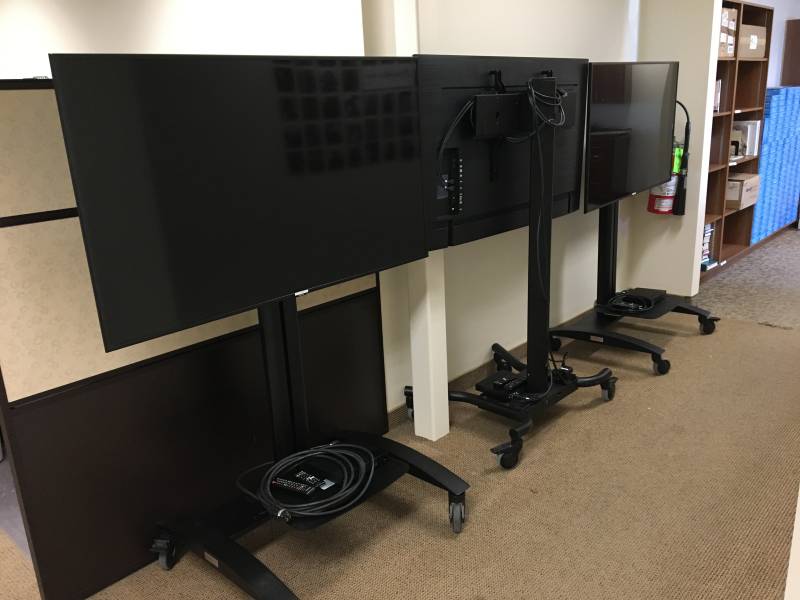
- Each TV has a remote control permanently attached to TV stand and is held to the back of the TV with Velcro.

- Please leave the TV cart as clean as you found it, and return it to the same location when you are done.


BluRay and DVD Player
- Step 1. Use the TV remote to switch the input to HDMI 2.
- Step 2. Put the disc into the player and use the BluRay player remote control (which is fixed to the player itself) to play it. Make sure you remove your BluRay/DVD when you're done with the TV.


Apple TV
- Step 1. Make sure your Apple device is connected to
Southland_ChurchWiFi. 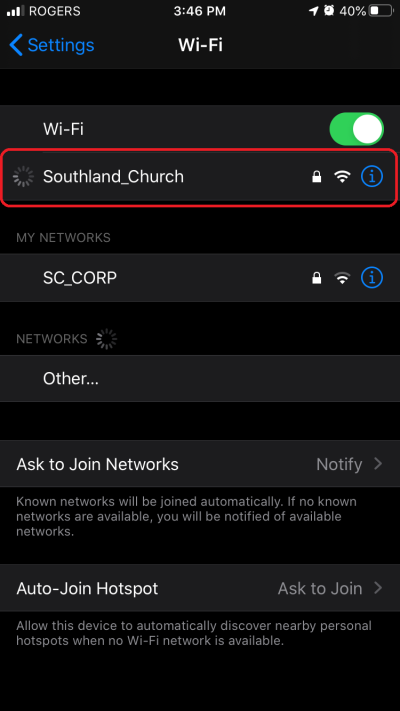
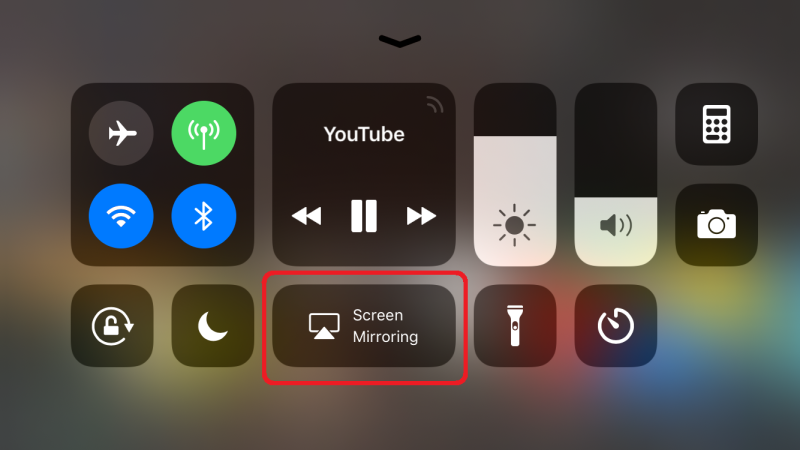
- Step 2. On your iPhone or iPad, open the control center (e.g. swipe up from bottom on iPhone) and select Screen Mirroring and select the correct TV Cart
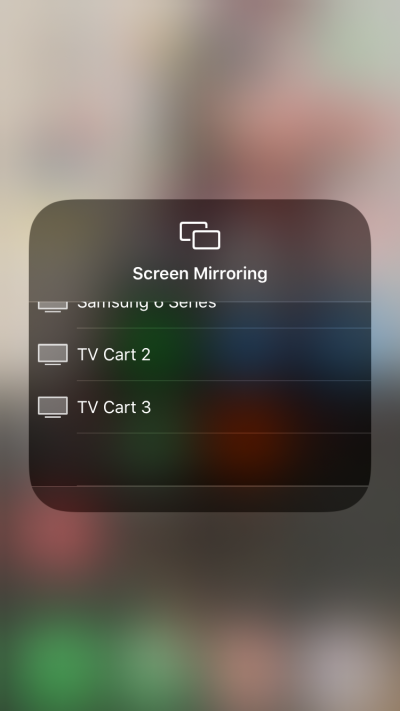
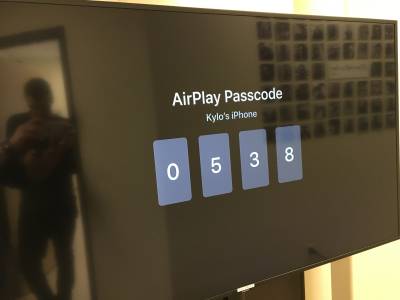
- Step 3. Enter the PIN that appears on the TV


Microsoft Wireless Display Adapter
- Step 1. Use the TV remote to switch the input to HDMI 3. Take note of the name displayed on screen.
- Step 2. Open Action Center on your laptop and click Connect (you may have to click expand to see the Connect option).


- Step 3. Connect to the display that has the same name as noted in step 1. The TV screen will change – enter the PIN on your laptop to finish connecting.

Plug in via HDMI
- A spare HDMI cable should be wrapped up with a Velcro wrap and placed between the TV stand and the back of the TV.

- If you need a display adapter for a specific device, please email help@mysouthland.com to make a request.

If you have any further questions, or if you are ever unsure about what to do, please contact TSD at help@mysouthland.com.